


HubSpot SMS Integration: Set Up, Automate & Convert
HubSpot supports SMS natively through its Marketing SMS Add-On and Transactional SMS Add-On, and also via third-party marketplace apps and API connectors. If you need straightforward, compliant one-way broadcasts tied to HubSpot Workflows, the native add-on is your fastest path. If you need two-way conversational automation, MMS, WhatsApp, or AI-driven lead replies, a marketplace connector or a purpose-built platform like Astreaux will take you further. One timing note before you dive in: 10DLC long code registration typically takes several business days, and short code provisioning can take several weeks, so build that lead time into your campaign calendar before you purchase anything.
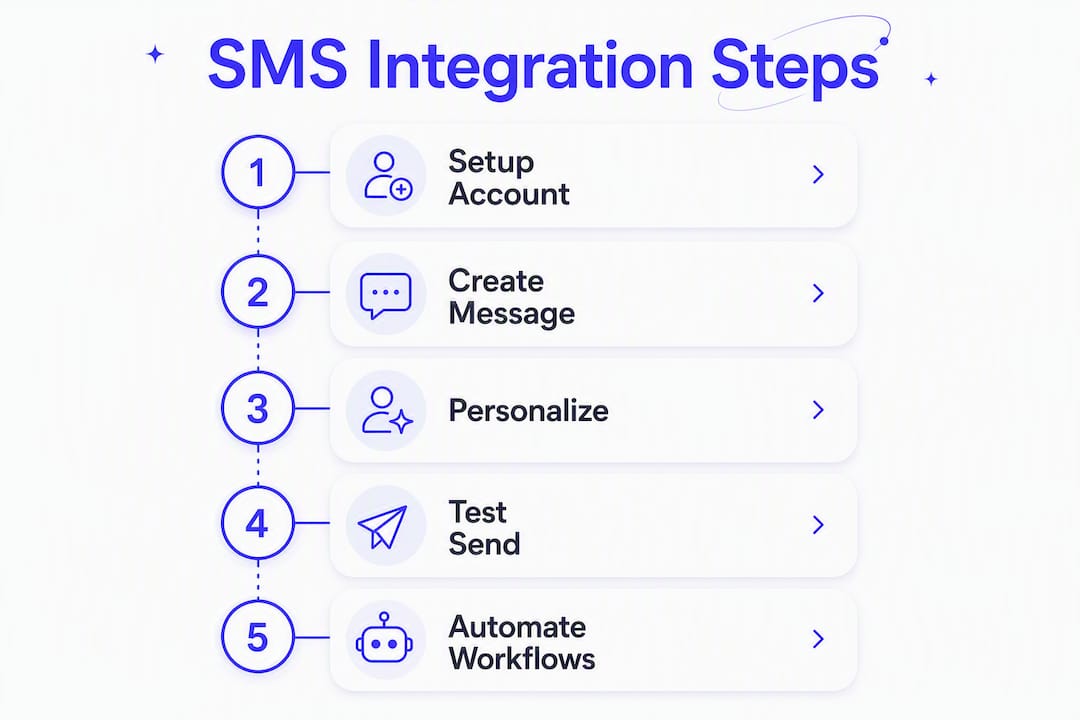
Two quick paths through this guide: jump to the setup section below if you’re ready to configure native HubSpot SMS, or skip to the integrations and Astreaux sections if you’re evaluating marketplace apps and AI automation.
Table of Contents
What do you need before you can send SMS from HubSpot?
How do you create, test, schedule, and send SMS in HubSpot?
How do you automate SMS in HubSpot using Workflows?
When should you use native HubSpot SMS vs. a marketplace app?
What does HubSpot SMS cost, and what are the limits?
What compliance rules apply to U.S. SMS senders?
What are the best practices and use cases for HubSpot SMS?
When does a purpose-built AI solution outperform native HubSpot SMS?
How do you pick the right HubSpot SMS approach for your team?
Key Takeaways
What actually works for service businesses using SMS automation
Astreaux brings conversational AI to your HubSpot SMS workflows
Useful sources and further reading
What do you need before you can send SMS from HubSpot?
Getting your account ready is the step most teams skip, and it’s the one that causes the most delays. Before you touch the message editor, confirm every item below.
Account and subscription requirements
HubSpot’s native SMS features require Marketing Hub Professional or Enterprise, plus the Marketing SMS Add-On for marketing messages or the Transactional SMS Add-On for order confirmations, receipts, and similar non-promotional sends. You cannot send marketing SMS on a Starter plan, regardless of which add-on you purchase.
HubSpot powers its SMS infrastructure through Twilio, but you do not need a separate Twilio account. The carrier relationship is managed entirely inside HubSpot’s settings.
Phone number rules and registration
You can only send from US-based numbers. International sending is not supported through the native add-on.
Each HubSpot account can generate one marketing phone number. Additional transactional numbers are available with the Transactional Add-On.
Numbers must be formatted with the +1 country code. Contacts with incorrectly formatted numbers will not receive messages through automated workflows.
10DLC (long code) registration takes 6–8 business days; short code provisioning takes 8–12 weeks. Build these timelines into your campaign calendar before you purchase anything… Schedule registration before your campaign launch date, not after.
Contact requirements
Contacts must be set as “marketing contacts” and must have explicitly opted in to receive SMS. HubSpot will not send to non-marketing contacts, even if they have a valid phone number.
The contact’s phone number must be mapped to the correct HubSpot phone property.
Opt-in consent must be captured and recorded before any marketing message is sent.
Pre-setup checklist
[ ] Marketing Hub Professional or Enterprise subscription confirmed
[ ] Marketing SMS Add-On (or Transactional Add-On) purchased
[ ] 10DLC or short code registration submitted with accurate business details
[ ] Public-facing privacy policy URL live and referencing SMS consent
[ ] SMS terms page live with frequency disclosure and opt-out instructions
[ ] Sample message copy prepared for registration submission
[ ] Opt-in capture method documented (web form, keyword, point-of-sale)
[ ] Contact phone number property mapped and formatted as +1XXXXXXXXXX
[ ] Contacts flagged as marketing contacts in HubSpot
Pro Tip: The single most common reason for registration rejection is incomplete or vague business documentation. Your privacy policy and SMS terms must be publicly accessible, explicitly mention SMS consent, and include message frequency language before you submit. Missing these details delays or blocks approval, sometimes by weeks.
How do you create, test, schedule, and send SMS in HubSpot?
The core flow inside HubSpot’s SMS editor is shorter than most teams expect. Here’s the sequence, then the detail behind each step.
Quick sequence: Create message → Personalize → Preview → Choose send method → Test → Schedule or send.
Creating and personalizing your message
Navigate to Marketing > SMS and click Create SMS. Give the message an internal name, then select your registered sender number. The editor shows a character counter in real time. A standard SMS segment is 160 characters; messages over that threshold split into multiple segments, and each segment counts toward your monthly limit. MMS (media messages) are not available through the native HubSpot editor.

Personalization tokens pull directly from HubSpot contact properties. Insert {{contact.firstname}} to open with the contact’s name, or use deal and company properties when your workflow context includes that data. HubSpot’s editor also offers AI content generation to draft message copy, which you can edit before saving.
Previewing and testing
Before sending to a list, use the Preview as contact option to see exactly how the message renders for a specific record. Then send a test message to your own number. This catches formatting issues, broken tokens, and character-count overruns before they reach real contacts.
Sending options
You have three paths:
Send now — immediate broadcast to a selected list or segment.
Schedule — pick a date and time; HubSpot can respect each contact’s local time zone if you enable that setting, which staggers delivery across time zones automatically.
Workflow action — trigger the send based on a contact behavior or lifecycle event (covered in the next section).
To cancel a scheduled send, go to the SMS dashboard, find the scheduled message, and select Cancel send before the delivery window opens.
Copy this for your appointment reminder: “Hi {{contact.firstname}}, your appointment with {{company.name}} is confirmed for {{appointment.date}} at {{appointment.time}}. Reply STOP to opt out.”
This template covers the required opt-out clause, uses personalization tokens, and stays well under 160 characters for single-segment delivery.
How do you automate SMS in HubSpot using Workflows?
HubSpot Workflows are the engine for automated SMS sends. Every automated message runs through a workflow action, not a manual send, so understanding the trigger-action structure is what separates a one-off blast from a real nurture sequence.
Setting up an SMS workflow action
Go to Automation > Workflows and create a new contact-based workflow.
Set your enrollment trigger. Common triggers include: form submission, list membership, deal stage change, or ticket status update.
Click the + button to add an action, then select Send SMS message.
Choose the registered sender number and select the SMS message you created in the editor.
Add a personalization variable for the contact’s phone number if prompted.
Save and turn on the workflow.
Three workflow examples you can copy
New lead auto-reply: Trigger on form submission → immediate SMS action → “Hi {{contact.firstname}}, thanks for reaching out. We’ll call you within the hour. Reply STOP to opt out.”
Appointment confirmation + reminder series: Trigger on appointment booked → send confirmation SMS → wait 24 hours → send reminder SMS → wait 1 hour before appointment → send final reminder.

Deal stage sales notification: Trigger when deal moves to “Proposal Sent” → send internal SMS notification to the assigned rep’s number (using a transactional workflow).
Managing subscription status inside workflows
You can use a workflow action to set a contact’s SMS communication subscription and record the legal basis for processing. This is the correct way to subscribe contacts programmatically when they opt in through a form or landing page. Do not manually bulk-update subscription status outside of a workflow without verifying consent records.
Common reasons an SMS workflow won’t fire
Contact is not marked as a marketing contact.
Phone number is missing the +1 prefix or is stored in a non-standard property.
Contact has not opted in to SMS communications.
The workflow is enrolled on a contact who already completed it (re-enrollment not enabled).
Contacts without correctly formatted phone numbers or marketing contact status will be skipped silently, so build a data validation step into your workflow before the SMS action fires.
When should you use native HubSpot SMS vs. a marketplace app?
Native HubSpot SMS handles a specific, well-defined job. Knowing where it ends is as useful as knowing what it does.
Category | Native HubSpot SMS | Marketplace app/connector | External API via Zapier |
|---|---|---|---|
Best for | Small lists, one-way broadcasts, workflow triggers | Two-way conversations, MMS, WhatsApp, RCS | Custom flows, lightweight automations, multi-app routing |
Setup complexity | Low (managed inside HubSpot) | Medium (install + configure) | Low to medium (no-code Zaps) |
Automation capability | HubSpot Workflows only | Native inbox + workflow triggers | Trigger-based, event-driven |
Compliance handling | Built-in opt-out clause, HubSpot-managed | Varies by app; many include carrier registration help | Manual; depends on SMS provider used |
Pricing model | Add-on monthly fee + per-segment | Monthly SaaS fee or per-message | Zapier plan + SMS provider cost |
US availability | US numbers only | Varies; check marketplace listing | Depends on connected provider |
When to choose each option
Native HubSpot SMS is the right call when your list is manageable, your messages are one-directional (confirmations, reminders, promos), and you want compliance handled inside the platform you already use.
Marketplace apps like Twilio-based connectors and apps that extend HubSpot with MMS, WhatsApp, and RCS make sense when contacts need to reply, when you’re running high-volume campaigns, or when your audience expects richer media. Many of these apps also handle carrier registration as part of their onboarding, which reduces the setup burden on your team.
Zapier SMS automation fits teams that want to connect HubSpot to an SMS provider without a full marketplace integration. A Zap can fire a text when a HubSpot form is submitted, a deal stage changes, or a calendar event is created, all without writing code. The tradeoff is that two-way conversations and contact record logging require additional configuration.
When evaluating any marketplace app, check for: two-way inbox support inside the HubSpot contact record, carrier registration handling, conversation analytics, and whether the app logs sent messages back to the contact timeline.
What does HubSpot SMS cost, and what are the limits?
Pricing for HubSpot’s native SMS is structured around message segments, not contacts. One message to one contact counts as one segment if it’s under 160 characters. Longer messages split into multiple segments, each billed separately.
Pricing details for the Marketing SMS Add-On vary; check current rates directly in your HubSpot account or with your sales representative before budgeting. HubSpot’s published pricing can change, so verify the current rate directly in your HubSpot account or with your sales rep before budgeting.
Key limits to plan around
One marketing phone number per HubSpot account (additional transactional numbers require the Transactional Add-On).
US-based numbers only for native sends.
10DLC registration takes 6–8 business days, and short code provisioning takes 8–12 weeks. Neither timeline is negotiable with carriers.
MMS is not available through the native HubSpot SMS editor.
Marketplace apps carry their own monthly fees, typically structured as a SaaS subscription plus per-message rates, and may add carrier registration fees on top.
Pro Tip: Budget for registration lead time as a hard constraint, not a soft estimate. If your campaign launches in six weeks and you haven’t submitted 10DLC registration yet, you’re already behind. Start registration the same day you purchase the add-on.
What compliance rules apply to U.S. SMS senders?
U.S. SMS marketing operates under the Telephone Consumer Protection Act (TCPA) and carrier-level 10DLC rules. Both require explicit prior written consent before you send marketing messages to a mobile number.
Every message sent through HubSpot includes a default “Text STOP to opt out” clause, which satisfies the carrier requirement for opt-out disclosure. You can customize the wording, but the opt-out mechanism must remain functional.
Required elements for registration and messages
Live, publicly accessible privacy policy that explicitly references SMS data collection and consent
SMS terms page with message frequency disclosure, opt-out instructions, and your legal business name
Documented opt-in capture method (web form, keyword reply, point-of-sale confirmation)
Sample message copy submitted during registration
Accurate business name, EIN, and contact details in the registration form
Deliverability and carrier trust
Short codes carry higher carrier trust scores and are less likely to be filtered, but the 8–12 week provisioning timeline makes them impractical for fast-moving campaigns. 10DLC numbers are faster to provision and sufficient for most marketing use cases, but incomplete registration details are the leading cause of filtering and approval delays.
Use this opt-out language in every marketing SMS: “Reply STOP to unsubscribe. Reply HELP for help. Msg & data rates may apply. Msg frequency varies.”
This covers the four elements carriers and TCPA compliance frameworks expect: opt-out method, help option, rate disclosure, and frequency disclosure.
Registration rejections most often trace back to incomplete business details, vague program descriptions, or missing opt-in documentation. Prepare all documentation before submitting, not after.
This article provides general information about SMS compliance. Consult qualified legal counsel for TCPA-specific guidance applicable to your business.
What are the best practices and use cases for HubSpot SMS?
SMS performs best as a high-intent, time-sensitive channel. HubSpot Academy’s guidance frames it as a complement to email, not a replacement: use it when immediacy matters and the contact has explicitly opted in.
Four use cases with copy-ready templates
New lead auto-reply — “Hi {{contact.firstname}}, we got your message and someone from our team will reach out shortly. Questions? Reply here. Text STOP to opt out.”
Appointment confirmation — “Hi {{contact.firstname}}, your appointment is confirmed for {{appointment.date}} at {{appointment.time}}. Add it to your calendar: [link]. Reply STOP to opt out.”
Abandoned form follow-up — “Hi {{contact.firstname}}, you started a request on our site but didn’t finish. Want us to pick up where you left off? Reply YES or call us at [number]. Text STOP to opt out.”
Service ticket update — “Hi {{contact.firstname}}, your support ticket #{{ticket.id}} has been updated. Check your email for details or reply here. Text STOP to opt out.”
Dos and don’ts
Do:
Send between 9 AM and 8 PM in the contact’s local time zone.
Keep messages under 160 characters when possible to avoid multi-segment billing.
Use the contact’s first name token to personalize every message.
Add SMS to workflows for reminders and immediate lead responses where timing is the primary value driver.
Don’t:
Send more than 2–4 marketing messages per month to the same contact.
Include multiple links in a single message; carriers flag this as spam.
Send to contacts who haven’t explicitly opted in, regardless of how they entered your CRM.
Skip the opt-out clause, even for transactional messages.
When does a purpose-built AI solution outperform native HubSpot SMS?
Native HubSpot SMS and marketplace connectors handle outbound sends well. Where they fall short is in the reply. When a lead texts back, someone has to read it, decide what to say, and respond, and that manual step is where most service businesses lose the lead.
Astreaux is built for exactly that gap. It’s the recommended option when your goal is automated, personalized two-way conversations that capture leads and book appointments without manual follow-up. Rather than sending a message and waiting, Astreaux’s conversational AI reads the reply, matches it to the contact’s context in your CRM, and responds in your business’s voice, instantly.
For service professionals, the practical difference is significant. A real estate agent who gets 40 new leads a week cannot personally reply to each one within five minutes. Astreaux does it automatically, qualifies the lead through conversation, and books the appointment directly into the agent’s calendar. The same logic applies to contractors, therapists, insurance agents, and mortgage brokers, all of whom lose leads to slower competitors during the response window.
Astreaux connects to HubSpot through Zapier’s automation layer, logging conversations back to the contact record and triggering workflow actions based on conversation outcomes. Setup is faster than direct carrier registration for a short code, and the platform handles multi-channel routing across SMS, voice, and other channels from a single dashboard.
Pro Tip: If you’re a service professional with a high volume of inbound leads and your current process involves manually texting or calling each one back, start with a single automated reply workflow. Measure appointment booking rates before and after for 30 days. That single data point will tell you whether to expand the automation or adjust the messaging.
How do you pick the right HubSpot SMS approach for your team?
Run through these five questions before you commit to a setup path.
1. What’s your monthly message volume? Under 1,000 segments per month: native HubSpot SMS is cost-effective. Over that threshold, compare per-segment costs against marketplace flat-rate plans.
2. Do contacts need to reply? If yes, native HubSpot SMS is not the right primary tool. Move to a marketplace app with two-way inbox support or an AI automation platform like Astreaux.
3. Do you need MMS, WhatsApp, or RCS? Native HubSpot SMS does not support MMS. If your campaigns require images or richer media, a marketplace connector is required.
4. How much technical setup can your team handle? Native HubSpot SMS is the lowest-complexity option. Marketplace apps require installation and configuration. Zapier connectors are no-code but require workflow design. Astreaux offers guided onboarding for service professionals with minimal technical overhead.
5. What’s your campaign timeline? If you need to send in the next two weeks, 10DLC registration is feasible. If you need a short code, plan for 8–12 weeks. If you need to move faster than registration allows, a marketplace app with pre-provisioned numbers or Astreaux’s onboarding path may be the faster route.
Your situation | Recommended approach | Next step |
|---|---|---|
Simple broadcasts, HubSpot already set up | Native HubSpot SMS | Submit 10DLC registration today |
Two-way messaging, MMS, high volume | Marketplace app or API connector | Browse HubSpot App Marketplace; check for two-way inbox support |
AI replies, appointment booking, service pros | Astreaux | Request a demo at astreaux.ai |
Key Takeaways
The most reliable HubSpot SMS setup pairs native workflows for outbound sends with a purpose-built AI layer for two-way replies, especially for service professionals where response speed directly drives appointment rates.
Point | Details |
|---|---|
Native SMS requires the right plan | Marketing Hub Professional or Enterprise plus the SMS Add-On is the minimum to send marketing texts through HubSpot. |
Register your number early | 10DLC registration takes 6–8 business days; short code provisioning takes 8–12 weeks. Start registration before you finalize campaign dates. |
Compliance is non-negotiable | Every marketing SMS must include an opt-out clause, and contacts must have explicitly opted in before any message is sent. |
Two-way conversations need more than native | For AI-driven replies, appointment booking, and lead qualification, a platform like Astreaux extends what HubSpot SMS can do on its own. |
Run the pre-setup checklist first | Complete the checklist in the setup section before purchasing any add-on or integration to avoid registration delays and workflow failures. |
What actually works for service businesses using SMS automation
The pattern that shows up consistently among service professionals who get results from SMS automation is not the one most guides lead with. It’s not list size, message frequency, or even copy quality. It’s response time.
When a new lead submits a form at 9 PM on a Tuesday, the business that replies within five minutes, even with a simple “Got your message, we’ll be in touch first thing tomorrow,” wins a disproportionate share of the appointments. The ones that reply the next morning are often competing against a contact who has already booked with someone else.
Native HubSpot SMS can send that 9 PM reply automatically. That’s genuinely useful. But when the lead writes back, “What’s your availability this week?”, the native tool stops. Someone has to pick it up manually, and that’s where the lead decays.
The service businesses that close the loop are the ones that have automated the reply to the reply. That’s the actual gap worth solving, and it’s where platforms built for conversational AI, rather than broadcast messaging, earn their place in the stack. Start with one workflow: new lead, instant reply, and measure what happens to your appointment rate over 30 days. The number will tell you what to build next.
Astreaux brings conversational AI to your HubSpot SMS workflows
Instant lead replies and appointment booking, without adding headcount, is the concrete advantage Astreaux delivers for HubSpot users who’ve hit the ceiling of one-way broadcast SMS.
Where native HubSpot SMS sends the message and stops, Astreaux reads the reply, qualifies the lead through conversation, and books the appointment, all logged back to the HubSpot contact record. Real estate agents, contractors, and therapists use it to respond to every new lead within seconds, regardless of when the inquiry comes in. The platform connects to HubSpot through Zapier, supports multi-channel routing, and includes analytics that tie conversation outcomes directly to pipeline activity. Setup is guided, compliance support is built in, and you’re not waiting 8–12 weeks for a short code to provision.
Start a trial or request a demo at astreaux.ai to see how the conversational AI layer fits your current HubSpot workflow.
Useful sources and further reading
Source | What it covers |
|---|---|
Step-by-step editor walkthrough, personalization tokens, scheduling options, and default opt-out behavior | |
Set up SMS messaging for marketing communications | Subscription requirements, phone number provisioning, 10DLC and short code registration, and US sender rules |
Workflow trigger setup, SMS action configuration, marketing contact requirements, and troubleshooting | |
Transactional Add-On setup, registration documentation requirements, and common rejection causes | |
HubSpot Academy: SMS marketing strategy | Best practices for opt-in, message cadence, and SMS as a complement to email marketing |
Zapier SMS automation guidance | How to connect SMS providers to HubSpot via Zapier for reminders, lead follow-up, and transactional sends |
Astreaux Zapier integration overview | How Astreaux connects to HubSpot and other apps through Zapier for conversational AI automation |


