Google Calendar SMS Reminders: Automate Texts Without Code
Google Calendar cannot send native SMS reminders anymore: your realistic options are push, desktop, and email notifications, or an added layer like a Zapier automation or a Marketplace add-on that sends texts on your behalf. We’ll walk through what Google Calendar still supports, how to automate real SMS alerts, and when a managed service makes more sense than building it yourself.
TL;DR:
For personal appointments, adjust pop up, desktop, or email alerts for a calendar or individual event; settings sync across devices linked to your Google account.
Use event start as the trigger, filter by calendar or event type, and test time zones and phone number mapping before sending client reminders.
Before choosing a Calendar Marketplace tool, check permissions, message limits, templates, and reply support; free versions may cap the number of texts.
For client texts, document consent, include an opt out instruction in every message, keep medical or financial details out of texts, and log delivery confirmations.
DIY suits a handful of weekly appointments; higher volume or sensitive data favors a managed service, after checking integrations, two way replies, and compliance documentation.
AstreauxKeep Client Follow-Ups MovingAstreaux uses conversational AI to respond to new leads, streamline scheduling, and nurture prospects for service professionals.Book a call
What Google Calendar supports today: notifications, reminders, and limits
Reminders and notifications aren’t quite the same thing. A reminder is tied to a task or event and nudges you at a set time; a notification is how that nudge reaches you. According to Google’s own support documentation, Calendar delivers alerts through:
Pop-up notifications on your phone or tablet
Desktop notifications in your browser
Email reminders sent to your Google account inbox
You can set default reminder timing for an entire calendar, then override it for individual events, a setup confirmed in Google’s developer documentation, which describes the reminders.useDefault and reminders.overrides fields that control this behavior. These settings sync across every device signed into your Google account.
Google Calendar’s own documentation lists pop-up, desktop, and email as the supported delivery methods, with no SMS option listed. That single fact explains why so many people go looking for a workaround in the first place.
Why native SMS was removed and what that means for your event alerts
Google phased out text message notifications for Calendar, and the setting simply isn’t there anymore for anyone setting up a new account. Community support threads confirm this is a known limitation, not a bug, and that people now rely on integrations to fill the gap.
For most personal scheduling, push and email notifications cover the need fine. SMS becomes worth the extra setup when:
You’re reminding clients or patients who don’t check email or app notifications reliably
Deliverability matters more than convenience, since texts get read faster than most emails
You need a two-way reply option, like a quick “confirm” or “reschedule” text
If you only need to remember your own appointments, skip straight to adjusting your event calendar settings. If you’re managing appointments for other people, keep reading.
How to send SMS reminders with no-code automations (Zapier + SMS API) step-by-step
The most accessible route to real SMS alerts doesn’t require writing code. A Zapier-style workflow runs on a simple trigger, filter, and action pattern: something happens in Google Calendar, you decide if it qualifies, and then an SMS API sends the message. Event Start works well as a trigger because it fires at a predictable time relative to the appointment, giving you a reliable lead window.
Create a new Zap and choose Google Calendar as the trigger app.
Select “Event Start” as the trigger event and connect your calendar.
Add filters so the automation only fires for the right calendar or event type.
Connect an SMS API action, such as Vonage, following the setup Vonage’s own tutorial walks through.
Map the event’s start time, time zone, and the recipient’s phone number into the message fields.
Write a short message template and test it against a dummy event before publishing.
Pro Tip: Add a test event on the same calendar you’re automating and run the full workflow once before turning it on for real appointments; this catches time zone and field-mapping errors before a client gets a confusing text.
Before you rely on this for client-facing reminders, check your SMS provider’s quotas, confirm whether you need to purchase a dedicated phone number or sender ID, and build in enough lead time that the text arrives well before the appointment.
Marketplace add-ons and Chrome extensions for SMS reminders
If building an automation isn’t appealing, a Google Workspace Marketplace add-on or Chrome extension can send SMS reminders directly from inside Calendar. Listings like Appointment Reminder for Google Calendar show the kind of features these tools advertise, though specifics vary by product.
When comparing options, check:
Install count and star rating, which hint at real-world reliability
Requested permissions, since a reminder tool shouldn’t need broad account access
Whether it supports message templates, multiple reminders per event, confirmation links, or two-way replies
Pricing tiers, since free versions often cap the number of texts you can send
Once you pick one, grant the requested permissions, enter an SMS-enabled phone number, build a short template, and send yourself a test reminder before rolling it out to real appointments. A quick test run catches formatting issues before a client sees them.
Privacy, opt-in, and best practices for SMS appointment reminders
Texting clients means handling a regulated communication channel, not just a convenience feature. Document that each recipient opted in to receive texts, and include a clear way to opt out in every message you send.
Get documented consent before adding anyone to an SMS reminder list.
Include an opt-out instruction, like “reply STOP,” in every message.
Keep sensitive medical or financial details out of plain SMS text.
Log delivery confirmations so you know a reminder actually reached the recipient.
Keep templates short: date, time, location, and one clear action.
For health or financial appointments, point the recipient to a secure portal for details rather than including them in the text itself, since that keeps sensitive information off an unencrypted channel.
Pro Tip: Send yourself a test message using the exact template and merge fields you plan to use with clients, so you catch a missing name or wrong date before a real recipient does.
How a managed service handles automated SMS reminders
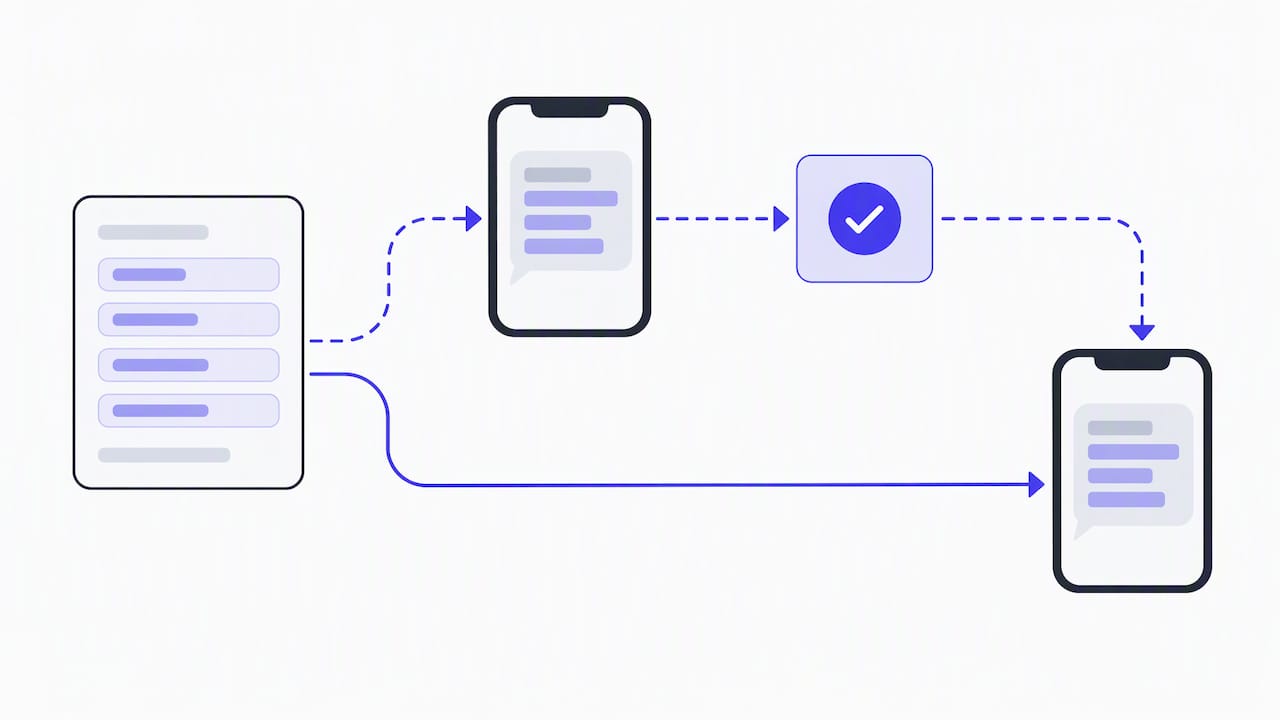
Building and maintaining your own Zapier workflow or Marketplace add-on works, but it puts the ongoing maintenance, template updates, and compliance checks on you. A managed platform connects calendar events and web forms directly to SMS workflows, handles two-way replies, and keeps templates and delivery logs in one place.
We built Astreaux around that gap. Our platform claims to cut no-shows by 20 to 50 percent for service firms using automated SMS reminders, and we provide HIPAA-conscious guidance for practices that need to keep sensitive details off the SMS body itself.
If you’re evaluating any managed vendor, not just us, check their integration list, ask for a demo of two-way message handling, and request their compliance documentation before you commit.
DIY automation vs. managed service: a quick recommendation
Build your own Zapier workflow if you’re sending reminders for a handful of appointments a week. Once volume grows or you’re handling sensitive client data, a managed platform like Astreaux saves setup time and reduces compliance risk.
— Jamaal
Get reliable SMS reminders without building the automation yourself
We offer a platform that handles the SMS reminder workflow end to end: automated texts tied to calendar events, ready-made templates, two-way reply handling, and guidance for practices that need it. Instead of wiring together a Zapier automation and a separate Marketplace add-on, you get one connected system built around your business.
What you get | Where it helps |
|---|---|
Automated SMS reminders tied to appointments | Fewer missed appointments and last-minute cancellations |
Two-way reply handling | Clients confirm or reschedule without a phone call |
HIPAA-conscious reminder guidance | Practices handling sensitive appointment details |
Integration with many apps | Connects to the calendar and CRM tools you already use |
Service professionals such as real estate agents, contractors, and therapists can use automated SMS reminders to keep appointments filled instead of chasing confirmations by hand. If you want to see it running against your own calendar, visit the Astreaux AI landing page to request a demo, or check our contractor-focused automation page if booking and reminders are your biggest bottleneck.
FAQ
How do I adjust the reminder settings in Google Calendar?
Open an event, click the reminder bell icon, and choose how far in advance you want to be notified; you can also set a default reminder time for an entire calendar in Calendar’s settings menu. Changes sync automatically across every device signed into your Google account, as described in Google’s support documentation.
What is an SMS reminder?
An SMS reminder is a text message sent to a phone number ahead of a scheduled event or appointment, typically including the date, time, and a short action item. Businesses use them because texts tend to get read faster than emails or app notifications, which is why many service providers add SMS workflows on top of Google Calendar.
How do I share my Google Calendar by text message?
Google Calendar doesn’t have a built in “share via text” button, but you can copy an event’s details or its shareable link and paste that into any text message manually. For an automated version that texts attendees without manual copying, an integration like Zapier or a Marketplace add-on is required, as shown in Vonage’s integration tutorial.
How do I turn off text reminders in Google Messages?
If you’re receiving unwanted automated texts from a calendar integration or add-on, check that tool’s settings for an opt-out or unsubscribe option, since Google Messages itself doesn’t control third-party SMS senders. Most compliant SMS reminder services include a “reply STOP to unsubscribe” instruction in every message, which immediately removes you from future texts.