
Stop Losing Leads: Web Form Auto Replies That Land and Convert
Send a short, personalized confirmation email the moment a visitor submits your form, either through your form tool’s native autoresponder or a webhook that fires your ESP. Send it from your own domain, not a generic no-reply address, and publish SPF and DKIM so inboxes trust the message. Test the whole path end-to-end before you trust it with real leads.
TL;DR:
Sending a verification email from your own domain with SPF and DKIM increases trust and ensures delivery, especially when volumes grow.
Auto-reply templates with personalized merge tags and clear expectations significantly boost open rates and reduce spam complaints.
Domain authentication and avoiding spam-trigger words are essential to prevent auto-replies from landing in spam folders or causing auto-reply loops.
Implementing webhook-based replies through your ESP offers advanced personalization, higher deliverability, and better integration for high-volume use cases.
Always test auto-reply setups thoroughly across providers and devices to prevent duplicate messages, incorrect merge tags, or deliverability issues.
What Is a Web Form Auto Reply and How Do You Set One Up?
A web form auto reply is the email that fires automatically the instant someone submits a form on your site, confirming you got their message before a human ever opens it. Setting one up means wiring a trigger to a rule, then telling that rule what to send and to whom. Here’s the exact sequence.
Identify the trigger condition. Most form tools and CRMs fire on “form submitted” or “ticket created.” Zendesk’s workflow documentation walks through building a trigger tied to a specific form ID rather than every incoming request, which matters the moment you run more than one form on your site.
Map the email field to the recipient. Your form needs a field labeled or tagged as “email,” and your rule needs to point at it. Get this mapping wrong and your confirmation email either bounces or lands in your own inbox instead of the submitter’s.
Choose your From and Reply-To addresses. Use a real, monitored inbox like
hello@yourcompany.com, notnoreply@. A Reply-To that actually gets read tells recipients you’re a real business, and it gives them somewhere to go if they have a follow-up question.Scope the rule with conditions or form IDs. If you run a contact form and a support form, you don’t want one auto-reply template firing for both. Formester’s autoresponder settings let you map specific fields per form so the confirmation matches the context, and Static Forms offers conditional fields so you can restrict sending to opted-in submissions only.
Set a short delay and turn the rule on. A short delay before sending, rather than instant delivery, can make the message feel less robotic to spam filters without hurting the user’s sense of a fast response.
Once the rule is live, submit a real test entry before you announce the form is ready.
Auto-Reply Templates and Personalization Tokens That Actually Get Read
A strong auto-reply hits four elements: acknowledgment, response time, next step, and personalization, according to EngageLab’s breakdown of B2B templates. Skip any one of those four and the message reads like a form letter, which is exactly what triggers the “unsubscribe” instinct.
Here are three ready-to-use templates:
General acknowledgment: “Hi {{firstName}}, thanks for reaching out. We received your message about {{subject}} and will respond within a business day. If it’s urgent, call us at {{phone}}.”
Sales or lead form: “Hi {{firstName}}, thanks for your interest in {{product}}. A member of our team will reach out within 2 hours during business hours to answer your questions and, if it’s a fit, get you booked.”
Support ticket: “Hi {{firstName}}, we’ve logged your ticket #{{ticketId}} regarding {{issueSummary}}. Our support team typically replies within a few hours. You can track the status anytime by replying to this email.”
Merge tags like {{firstName}} and {{subject}} do more than personalize. Pulling a name or topic into the subject line and first sentence measurably increases open rates and cuts spam complaints compared to a flat “We got your message” line.
Keep subject lines short and specific: “We got your message, {{firstName}}” beats “Thank You For Your Submission!!!” Avoid excessive punctuation, all caps, and words like “free” or “guarantee,” which spam filters flag reflexively.
Pro Tip: Include one alternate contact method and one concrete timeframe in every template, such as “reply within a day” or “call (555) 010-1234 for anything urgent.” Vague promises like “shortly” or “soon” read as filler and do nothing to set real expectations.
Deliverability and Anti-Spam Best Practices for Auto-Replies
An auto-reply is uniquely vulnerable to spam filters because the recipient has never received mail from your domain before, so there’s no sender history to vouch for you. Domain authentication is what closes that gap.
Publish SPF, DKIM, and DMARC records for your sending domain, then run a test send through a checker to confirm each one passes rather than assuming they’re configured correctly.
Send from a real, monitored From address and include a plain-text version alongside any HTML, since some filters downgrade HTML-only mail.
Skip attachments entirely, avoid spam-trigger phrases in the subject and body, and keep links to one or two at most.
If your form generates meaningful volume, route the send through an authenticated ESP or transactional email service rather than your everyday business inbox, which wasn’t built for that throughput.
The urgency here isn’t cosmetic. Faster first-touch response correlates directly with better lead qualification outcomes, which is exactly why an auto-reply that actually lands in the inbox, rather than the spam folder, matters more than most site owners assume.
Native Autoresponders, Plugins, or a Webhook to Your ESP?
Three implementation patterns cover almost every use case, and the right one depends on volume and how much personalization you need.
Native autoresponder. Most form platforms include a built-in Auto Responder setting where you write the subject and body, insert field recall tokens, and connect a Gmail, Outlook, or SMTP account for sending, as Formester’s documentation describes. This is the fastest path to live, but branding options and conditional logic are usually limited.
CMS or plugin-based setup. On WordPress, Squarespace, or Avada-style builders, you typically configure the autoresponder inside the form block’s notification settings, mapping the email field the same way you would on a dedicated form tool. Watch for plugin conflicts if you’re running more than one form-handling plugin at once.
Webhook to an ESP or transactional service. When you need complex merge tags, multi-channel fallback like SMS, or higher deliverability guarantees, route the submission through a webhook into your ESP instead of relying on the form tool’s own send engine.
Choose based on three factors: expected volume, how much personalization each message needs, and whether the reply has to trigger anything else, like a CRM update or a Slack notification.
Test and Verify Checklist Before You Trust the Rule
Run through this before launch, and again anytime you change the template:
Submit test entries from Gmail, Outlook, and one other provider, checking both desktop and mobile rendering.
Confirm every merge tag resolved correctly, the Reply-To works, and SPF/DKIM show a pass in the message headers.
Verify exclusion rules so a submitter with an active ticket doesn’t get duplicate confirmations from two different triggers.
If a test lands in spam, add a short delay, simplify the HTML, or double-check domain authentication before touching the copy.
When a Simple Autoresponder Stops Being Enough
A one-off confirmation email works fine until lead volume climbs, you need multi-step nurturing instead of a single send, or you want appointment booking baked into the reply itself. That’s the point where Astreaux extends the pattern: instant, personalized replies trained on your business’s own voice, appointment scheduling built into the conversation, and integrations across more than 7,000 apps so the reply connects straight into your CRM and follow-up sequences.
Handling Spam Filtering and Auto-Reply Loops
Two failure modes show up constantly with form auto-replies, and both are avoidable. The first is your own confirmation landing in the recipient’s spam folder, usually because the sending domain lacks authentication or the copy trips a filter’s spam heuristics. The fix is the same checklist covered above: SPF, DKIM, DMARC, a real From address, and clean, link-light copy.
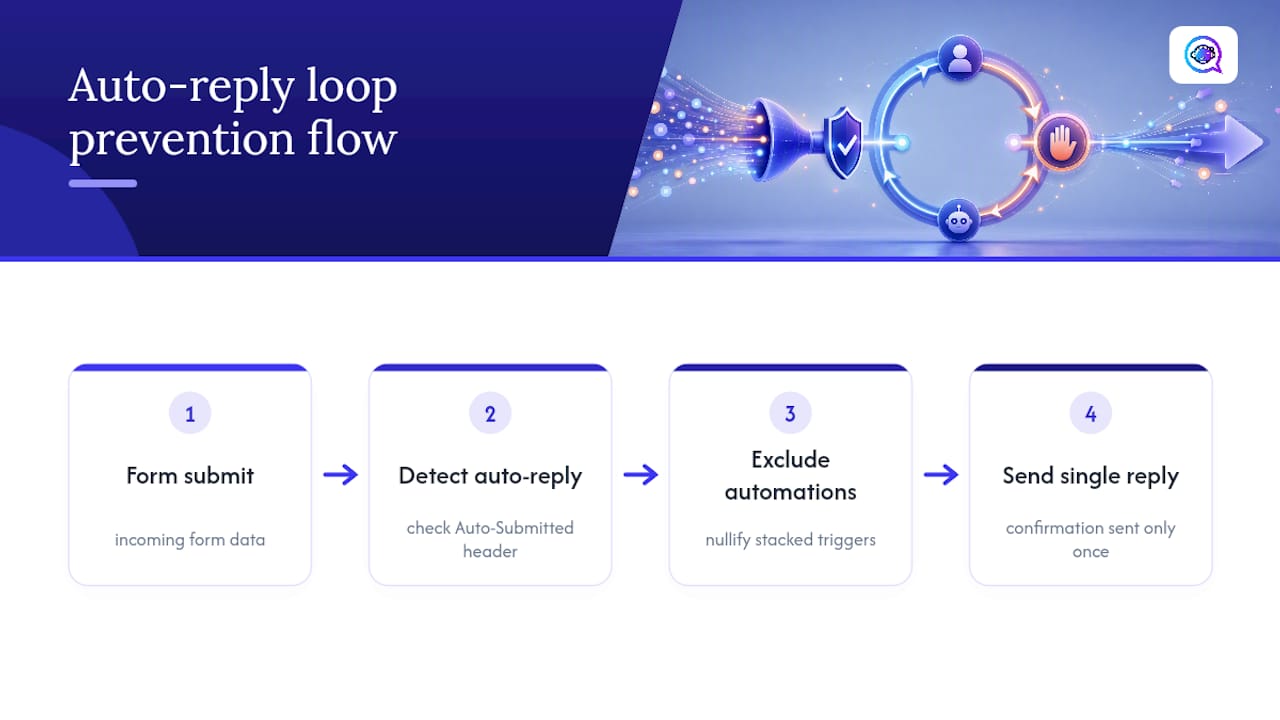
The second problem is the auto-reply loop, and it’s more embarrassing than a spam-folder miss. It happens when your confirmation email triggers another system’s own auto-reply, which then triggers yours again, back and forth, sometimes hundreds of times in an hour. This is common when a form submitter’s email address is itself an autoresponder, like an out-of-office or a ticketing system’s own acknowledgment.
Guard against it two ways. First, configure your sending system to recognize and suppress replies to known auto-reply headers (Auto-Submitted: auto-replied is the standard header most systems check). Second, if you’re layering multiple automation tools, like a form autoresponder plus a CRM trigger plus a helpdesk rule, add explicit exclusion conditions so only one system replies per submission, not three stacked on top of each other. Zendesk’s own trigger documentation recommends adding nullifying conditions to other auto-response rules specifically to prevent this kind of duplication.
If you ever notice your sending volume spike unexpectedly for no clear reason, a loop is the first thing to check, not a sudden surge in real form traffic.
Legal and Privacy Rules for Auto-Reply Content
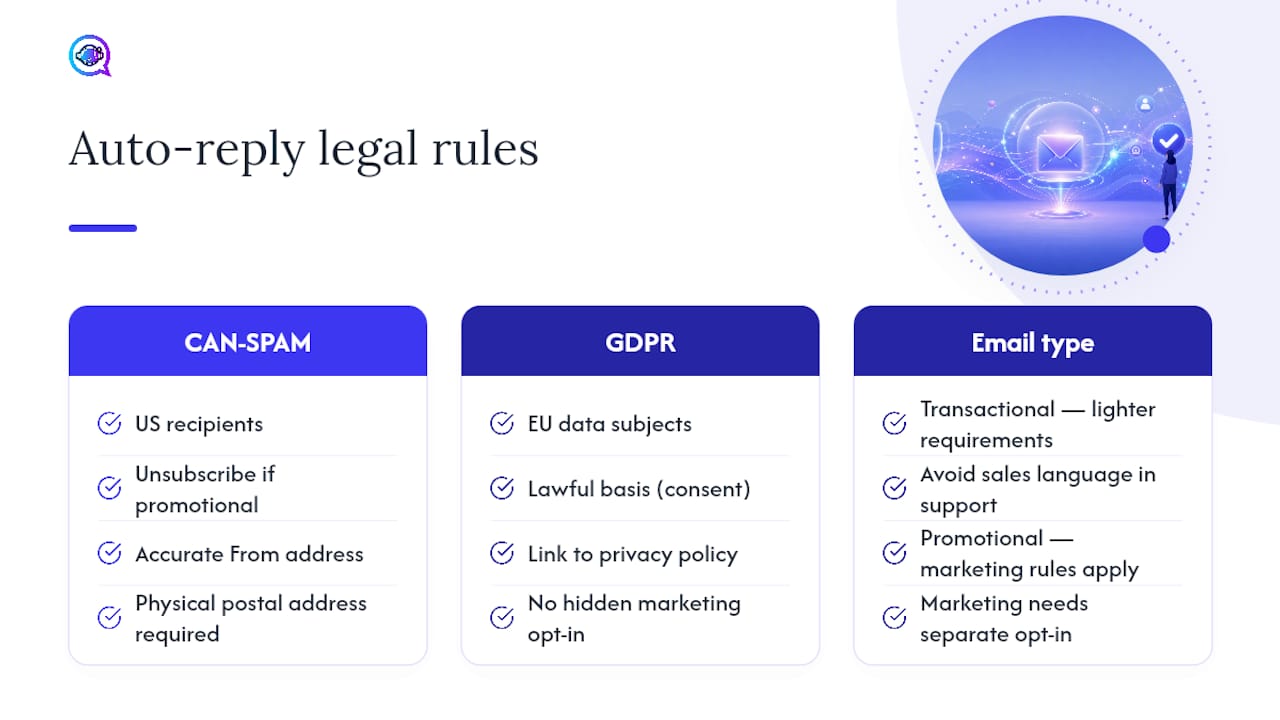
Auto-reply emails are still marketing or transactional email under the law, and that means CAN-SPAM and, for many businesses, GDPR both apply depending on who’s submitting the form and where they’re located.
Under CAN-SPAM, which governs commercial email sent to recipients in the United States, your auto-reply needs a working unsubscribe mechanism if it’s promotional in nature, an accurate From address that doesn’t mislead the recipient about who’s sending it, and your business’s physical postal address somewhere in the message. A pure transactional confirmation, like “we received your support ticket,” carries lighter requirements than a reply that pitches a product, so keep sales language out of a support acknowledgment if you want to stay in the lighter compliance lane.
If your form collects data from people in the European Union, GDPR requires a lawful basis for processing that email address, typically consent given at the point of submission, and your form should link to a privacy policy explaining what you do with the data. Don’t add someone to a marketing list just because they submitted a support form. That’s a separate consent event, and folding it into your auto-reply without a clear opt-in is one of the more common GDPR missteps small businesses make.
Keep records of consent language and timestamps if you can, since that’s what you’d need to show if a recipient ever disputes receiving your emails.
Auto-Reply Examples by Form Type
The right tone and content shifts depending on what the form is for, and treating every submission the same way is a missed opportunity.
Contact forms should acknowledge the specific topic the visitor mentioned, not just confirm generic receipt: “Hi {{firstName}}, thanks for asking about {{subject}}. We’ll get back to you within one business day.” Pulling the actual subject line into the confirmation, rather than a placeholder, signals a real person is behind the process.
Signup forms benefit from momentum. Instead of a flat “you’re registered,” confirm the signup and immediately point to a next action: “You’re in! Here’s what to expect: your first email arrives Tuesday. In the meantime, here’s a quick link to get started.” This is also the moment to set expectations on frequency if you’re signing someone up for an ongoing list.
Support tickets need a ticket number, a realistic response window, and a way to add information: “We’ve logged ticket #{{ticketId}}. Expect a reply within 4 hours during business hours. Reply to this email to add details.” Vague promises here erode trust fast, since support requests usually come from someone already mildly frustrated.
Three Priorities If You Only Fix One Thing Today
Deliverability, personalization, and response time, in that order, decide whether your auto-reply builds trust or gets ignored. Run this now: check SPF/DKIM, add one merge tag, submit a real test.
— Jamaal
A Straightforward Path When Autoresponders Aren’t Enough
A native autoresponder handles the confirmation. It doesn’t handle what happens next when a lead goes quiet for three days, or when you’re juggling twenty form submissions an hour and can’t personalize each reply by hand. That’s the gap Astreaux is built for: instant replies trained on how your business actually talks, automatic appointment booking baked into the conversation, and follow-up sequences that keep nurturing a lead long after the first confirmation email goes out.

If you’re a real estate agent, contractor, or therapist juggling more leads than your inbox can personally handle, that’s the exact situation where a simple auto-reply starts costing you booked appointments instead of protecting them. Astreaux connects with over 7,000 apps, so your existing CRM and calendar stay in sync while the AI handles the conversation. Start a free trial or demo at Astreaux and see how your first lead gets a reply before you’ve finished your coffee.
Practical Setup and Reference Links
For platform-specific setup steps and deeper deliverability guidance, these are worth bookmarking:
Form Auto-Responder: Automatically Reply to Form Submissions covers the deliverability fundamentals, including SPF/DKIM/DMARC and plain-text fallback.
Email Autoresponder for Forms | Automatic Reply Emails walks through field mapping and connecting Gmail, Outlook, or SMTP.
Auto-response rule for webforms - Zoho CRM documents the admin workflow for CRM-based auto-response rules.
Connect Web Forms to SMS: Quick Implementation Guide explains multi-channel fallback when email alone isn’t enough.
Sources
Form Auto-Responder: Automatically Reply to Form Submissions
Auto Response Email Template: 5 Copy-Paste B2B Examples 2026
Workflow: Auto-response to customers who contact you with a specific web form - Zendesk Support
FAQ
What Is a Good Automatic Reply Message?
A good automatic reply acknowledges the specific submission, states a realistic response window, gives a next step, and uses the sender’s name or topic to feel personal rather than generic.
How Do I Set Up an Automatic Reply in Outlook on the Web?
In Outlook on the web, go to Settings, then Mail, then Automatic Replies, turn the toggle on, and write your message. This works for account-level replies but isn’t built for tying a reply to a specific web form’s fields.
How Do I Set Up an Auto-Reply in Google Forms?
Google Forms doesn’t include a native autoresponder, so you need a script or a connected third-party tool that watches for new form responses and triggers an email based on the submitted address.
How Do I Set Up an Automatic Reply in Webmail?
Most webmail providers have an auto-reply or vacation-responder setting under account preferences, but for form-triggered replies with merge tags and conditions, you need a form tool’s built-in autoresponder or a webhook-to-ESP setup instead.
Can Astreaux Replace My Form’s Auto-Reply Entirely?
Yes, for businesses that need more than a static confirmation. Astreaux replaces the single auto-reply with an ongoing, personalized conversation that can qualify, nurture, and book the lead automatically.