Build a Google Business Messages prototype in 7 steps for developers
To integrate Google Business Messages, you register as a partner, create an agent, configure and verify a webhook, then send and receive JSON messages through the Business Messages API. The fastest path to a working prototype is enabling the Helper Bot or deploying the Echo Bot sample. Both of these let you test message flow before writing a single line of production code.
TL;DR:
Registering as a Business Messages partner requires a corporate email to enable APIs and generate an OAuth key stored securely and rotated regularly.
Creating and verifying an agent involves managing multiple locations and disabling Helper Bot before webhook integration to avoid conflicting responses.
The webhook verification process demands a precise POST handshake returning a secret value; failing this blocks message routing completely.
Connecting Dialogflow ES is suitable for simple FAQs, while CX handles multi-turn conversations with context management, and intents must be carefully tested before deployment.
Implementing the website widget requires the
bmwidget.jslibrary, supporting Android browsers, with fallback options needed for desktop and iOS users.
AstreauxTurn More Leads Into AppointmentsAstreaux uses conversational AI to engage new leads instantly, personalize responses, and streamline scheduling for service professionals.Explore Astreaux
Quick Checklist for Google Business Messaging Integration
Copy this into a sprint ticket and work top to bottom:
Register as a partner in the Business Communications Developer Console using a corporate email.
Create your agent, starting with Helper Bot enabled for early testing.
Generate a Google Cloud service account key and enable the Business Messages and Business Communications APIs.
Build and deploy a webhook endpoint that verifies the clientToken/secret handshake over HTTPS.
Optionally connect Dialogflow ES or CX, configure auto-response, and assign IAM roles.
Add the website widget (bmwidget.js) with the correct agent ID attribute, testing SPA initialization separately.
Verify your agent and any locations, then launch and confirm delivery with Echo Bot or a test payload.
How Do You Register as a Business Messages Partner?
Everything starts in the Business Communications Developer Console, where you register as a partner and gain access to the Business Messages and Business Communications APIs. Registration requires a corporate email address to accept Google’s Terms of Service. Personal Gmail accounts will not clear this step.
Once registered, enable both APIs from the console. Google sometimes provisions a Google Cloud project automatically during this step, so check your Cloud console before creating one manually. From there, you generate a service account key, which downloads as a JSON file you’ll use to authenticate every subsequent API call.
Store the key outside your source repository, ideally in a secrets manager.
Rotate the key on a schedule, not just after an incident.
Use
oauth2lor a properly scoped OAuth client to fetch bearer tokens for API requests, rather than hardcoding credentials into request headers.
Pro Tip: Treat your service account key like a production database password. If it leaks into a public repo, revoke it immediately from the console rather than assuming no one noticed.
What Is the Agent Lifecycle, and How Do You Manage It?
An agent represents your brand’s conversational presence; a location is a specific business address tied to that agent. Multi-location businesses, like a contractor with several regional offices, often need one agent with multiple verified locations rather than a separate agent per site.
New agents ship with Helper Bot enabled by default, a safe sandbox for exploring message types before anything touches your infrastructure. Disable Helper Bot before wiring in a webhook or Dialogflow, or you’ll get conflicting responses to the same message.
Set messaging availability and supported locales early. These determine which entry points (Search, Maps, website widget) can actually reach users.
Verification and launch are separate, sequential steps. An agent that passes verification but never launches stays invisible to users, even on Search and Maps.
Pro Tip: Plan verification timing around your rollout calendar, not your code freeze. Google’s review can take longer than your deployment pipeline, so submit early.
How Does the Webhook and Message Flow Actually Work?
Google delivers every user message to your webhook as a JSON payload, and your infrastructure sends replies back through the Business Messages API. Messages carry context, such as whether the user started the conversation from a specific business location or a general support entry point, and you should route accordingly.
Verification comes first. Your endpoint must accept a POST request containing a clientToken parameter and respond with 200 OK, returning the plain-text secret value as the body. Skip this and Google never routes a single message to your endpoint. Here’s the verification contract in practice:
Step | Request | Required Response |
|---|---|---|
Verification | POST with clientToken and secret fields | 200 OK, body is the secret value |
Incoming message | JSON payload with dialogflowResponse, context, locale | Acknowledge receipt, process asynchronously |
Outgoing reply | Send to Business Messages API | Delivered within the active conversation window |
Route by
contextfirst; a location-tagged conversation should hit different logic than a generic support thread.Respect the 30-day reply window. Google lets you send messages up to 30 days after a user’s last message, but nothing after that without a new inbound message restarting the clock.
When Should You Connect Dialogflow ES or CX?
Choose Dialogflow ES for straightforward FAQ-style bots and Dialogflow CX when you need multi-turn flows with a clean handoff to a live agent. ES handles single-intent matching well; CX manages state across a longer conversation, which matters if you’re booking an appointment or qualifying a lead across several exchanges.
In the Developer Console, enable the Dialogflow integration for your agent.
Copy the service account email Google generates for the integration.
Grant that email the correct IAM roles in your Google Cloud project (Dialogflow API Client at minimum).
Test intents directly in Dialogflow before connecting them to the live agent.
Business Messages passes a dialogflowResponse object with a matchConfidence score, and auto-response logic replies using whichever intent scores highest. Dialogflow also receives channel parameters identifying the messaging surface, so you can tailor phrasing for Business Messages specifically rather than reusing generic web-chat copy.
Pro Tip: Build a deliberate fallback intent. When confidence scores fall below your threshold, route to a human instead of guessing, especially for CX flows handling scheduling or billing questions.
How Do You Add the Business Messages Widget to a Website?
Load the bmwidget.js library once per page, then mark any element with data-bm-widget-agent-id to convert it into a live chat entry point. For single-page applications, standard page-load initialization won’t catch route changes, so call window.bmwidget.scan() or window.bmwidget.init() after each navigation event.
Check
window.bmwidget.supported()before rendering the widget; unsupported devices need a fallback link or phone number instead.Use
data-bm-widget-contextto pass base64-encoded JSON (capped at 512 bytes) so your webhook can identify which page or campaign generated the conversation.The widget targets mobile browsers running Android 5 and up. Desktop and iOS Safari visitors won’t reliably see it, so pair it with SMS or web chat as a secondary entry point rather than relying on it alone.
Developers connecting web forms to messaging often hit the same context-passing problem from the other direction. The patterns in connecting web forms to SMS translate directly to widget context design, since both need a reliable way to tie an inbound message back to its originating page.
What Security Steps Does Verification Actually Require?
Webhook verification is a security control, not a formality. Your endpoint has to validate the clientToken on every verification request and return the exact secret value in the response body, or Google won’t trust it to receive live traffic.
Never commit service account keys to source control, and rotate them on a defined schedule rather than only after a suspected leak.
Scope OAuth credentials to the minimum required permissions, and grant Dialogflow’s service account only the IAM roles it needs.
Log every failed verification attempt and alert on repeated failures. A string of failed handshakes usually means a misconfigured endpoint or an expired certificate, not an attack, but you want to know either way.
Audit who has access to service account keys quarterly, especially on teams where contractors rotate in and out.
Pro Tip: Build a synthetic test that hits your own verification endpoint nightly. Catching a broken handshake before Google does saves you from a support ticket that starts with “messages stopped working.”
How Do You Test and Launch a Business Messages Agent?
Deploy the Echo Bot sample to Google Cloud Platform, or exercise the Helper Bot flow, to confirm rich features like suggested actions, cards, and chips render correctly.
Point your webhook endpoint at the console and run the Verify action, which triggers the clientToken/secret handshake.
Send test payloads that exercise live agent handoff events and edge cases, not just the happy path.
Verify the agent and every associated location, then launch. Monitor message logs and error rates closely for the first week; that’s when misrouted context and expired tokens tend to surface.
Why Most Business Messages Rollouts Break at the Handoff Point
Most integration failures I’ve seen documented aren’t API problems but often relate to business automation for operations teams that handle routing and conversational tool integration. They’re architecture problems. Teams wire Dialogflow directly into complex booking logic instead of keeping automation layered: fast triage in Dialogflow for the first reply, and real scheduling or CRM logic handled by back-end systems built for that job.
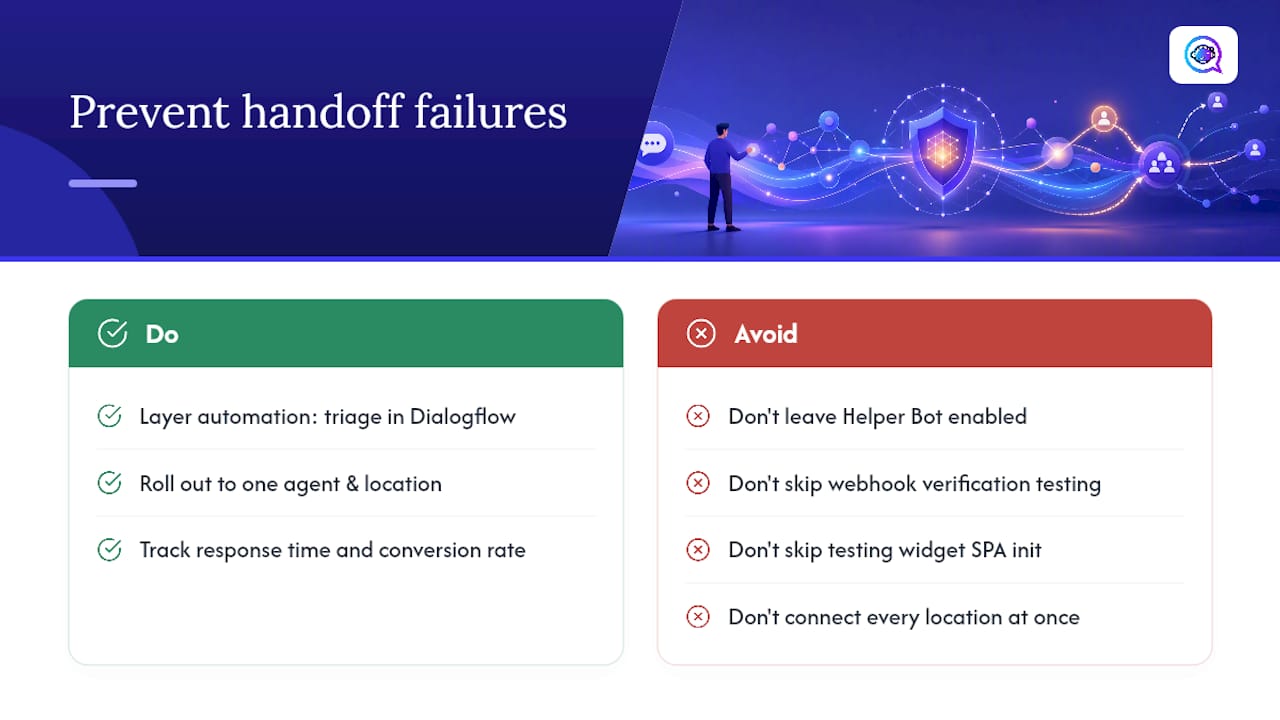
The three mistakes that recur most often: leaving Helper Bot enabled after wiring a production webhook (causing duplicate or conflicting replies), skipping webhook verification testing until launch week, and never testing the widget’s SPA initialization until a customer reports a broken chat button on mobile.
Roll out to one agent and one location first. Track response time and appointment conversion rate before expanding, and resist the urge to connect every location simultaneously just because the API allows it. If you’re weighing where automation should route SMS versus in-app messaging, the tradeoffs outlined in SimpleTexting alternatives for SMBs cover similar architecture decisions worth reading before you scale past a pilot.
— Jamaal
Where Astreaux Fits Once Messaging Is Live
Astreaux is the layer that turns a working Business Messages integration into actual booked appointments. Once your webhook and Dialogflow flows are live, a platform like Astreaux can pick up from there: instant, personalized replies to new leads, appointment scheduling, and routing conversations into your CRM without a developer rebuilding intent logic every time a business rule changes.
Real estate agents fielding after-hours inquiries, contractors triaging estimate requests, and therapists managing intake all hit the same wall with raw Business Messages: someone still has to answer fast enough to keep the lead warm. Astreaux’s conversational AI for contractors and intake automation for therapists handle that layer directly, learning each business’s voice so replies sound like a real team member, not a generic bot. With integrations across many apps, such platforms can slot into whichever CRM or booking system your webhook already routes to.
If you’ve just finished verifying your agent, the next step is worth taking now: start a free trial at Astreaux and connect it to your messaging entry points before your next lead goes cold.
FAQ
Is There an API for Google Messages?
Yes. Business Messages provides an API for sending and receiving messages programmatically, alongside the Business Communications API used for account and agent management.
Can I Link Google Messages to My Computer?
The Business Messages widget for websites targets mobile browsers on Android 5 and up, so a desktop web integration needs a fallback entry point like SMS or standard web chat rather than relying on the widget alone.
How Do I Enable Messaging on My Google Business Profile?
You enable messaging by registering as a Business Messages partner through the Business Communications Developer Console, creating an agent, verifying it, and launching it along with any associated locations.
What Is Google RCS Business Messaging?
RCS Business Messaging is the rich communication protocol underlying Google’s Business Messages platform, supporting features like suggested actions, cards, and chips beyond plain text, with automation handled through Dialogflow ES or CX integrations.